Putting images in frames with nicely-formatted captions like in my last two posts is a bit labor intensive on Mataroa. There's no good way to do it natively in markdown; you can use MD tables, but they require the presence of a header row. Good for some use cases, but not all.
A subset of HTML is supported, including <figure> and <figcaption>, but these always center the caption below the image; which is fine for a few words, but if I want the caption to be a block of information, I really want that to be left-justified. Also, the default <figcaption> font is a bit too small for my liking. I can increase the font size with <figcaption style=, but if I attempt to change the text justification this way it gets stripped out.
Since manual HTML tables are the only way to get the exact look I want, I decided to make a little bash script called Picbash to simplify this. It took me less than an hour, but then I thought, "hm, it would be nice if I could use the API to automatically add the HTML to a post without needing to copy and paste from a terminal. I wonder if I could make that?" Several hours of work later, I did make that, and I call it Matabash.
Installation
Download the script with curl:
curl --output matabash https://bluelander.neocities.org/matabash.txt
You can use whatever file name you like, but I prefer matabash with no file extension, so that's what I'll be using for these examples.
Make it executable with chmod:
chmod +x matabash
Execute the script with ./:
./matabash
If you'd like to run the script from anywhere on your system (without needing the ./), you can copy it to a PATH folder. You can see which folder(s) on your system to use with echo $PATH. Move the script into one of the folders displayed. For example, /usr/bin/ is a very common PATH folder, so you'd enter mv matabash /usr/bin/matabash.
Basic use
Out of the box, Matabash has only one function. Run the script and you'll be asked for the URL of the image you want to beautify. Unfortunately, the Mataroa API doesn't support image upload (probably for good reasons) so you'll need to already have your image hosted on Mataroa or elsewhere. Copy the URL and you can usually paste it into the terminal with Ctrl+Shift+V. (different terminal emulators might use different methods for copying/pasting text.)
💡 Tip: if Quick Status hasn't been enabled (see below), you can speed up the process by pasting the image url when you invoke Matabash, i.e.
./matabash https://example.com/whatever.jpg
And it'll immediately jump to the next step.
After the image is specified, you'll be prompted for a caption. This can be as long as you want, and can include HTML.
Next it'll ask if you want to add a link to the end of the caption. If you enter Y, it'll ask for a URL and the text of the link. You can also do this by adding HTML to the previous prompt; use whichever method causes you less friction.
Next it'll prompt you to add alt text. You can press enter to skip this if you described the image in the caption.
It'll ask if you want to specify the height of the image. This will make the image container (either a <td> or <figure>) the same height as the image. The only reason you'd really want to do this is if the image is going to be near the top of a post, because leaving this unspecified will cause text below the image to jump down the page once it loads in, which I find unpleasant. It's completely optional either way, though.
Finally, it'll ask if you want to center the caption. The default response is no. If you enter y, it'll use the <figure> method to display the image; otherwise it'll use a <table> and the caption will be left-justified.
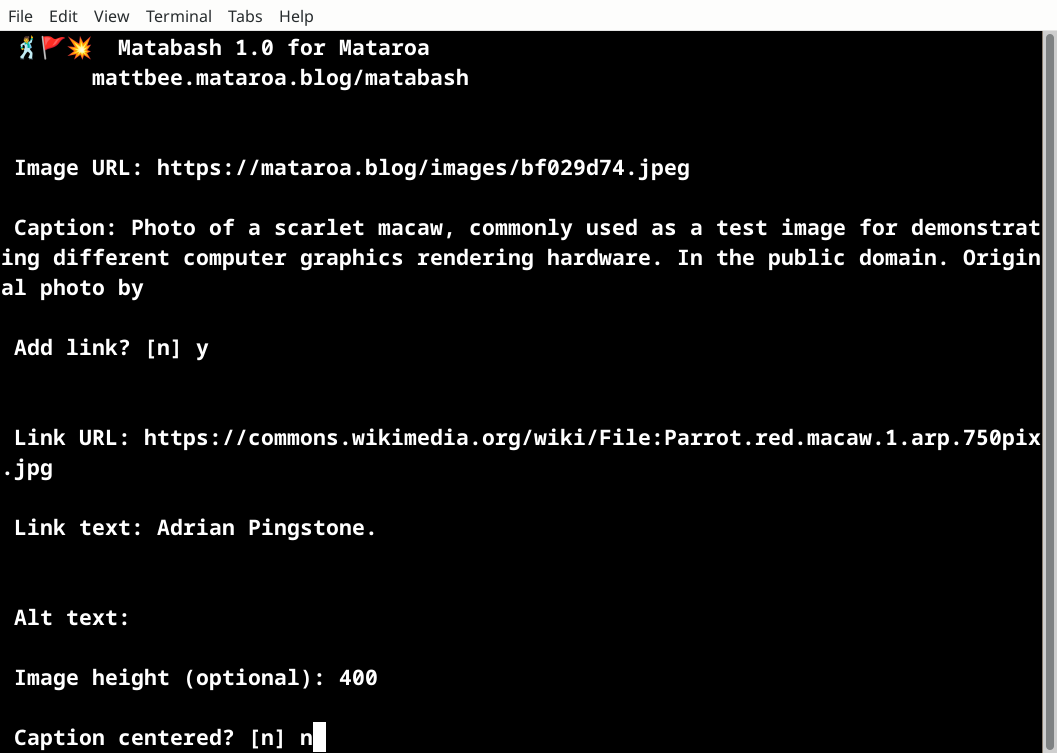
After entering all the information, it'll output a block of HTML you can copy (Ctrl+Shift+C in most terminals) and paste into your post:
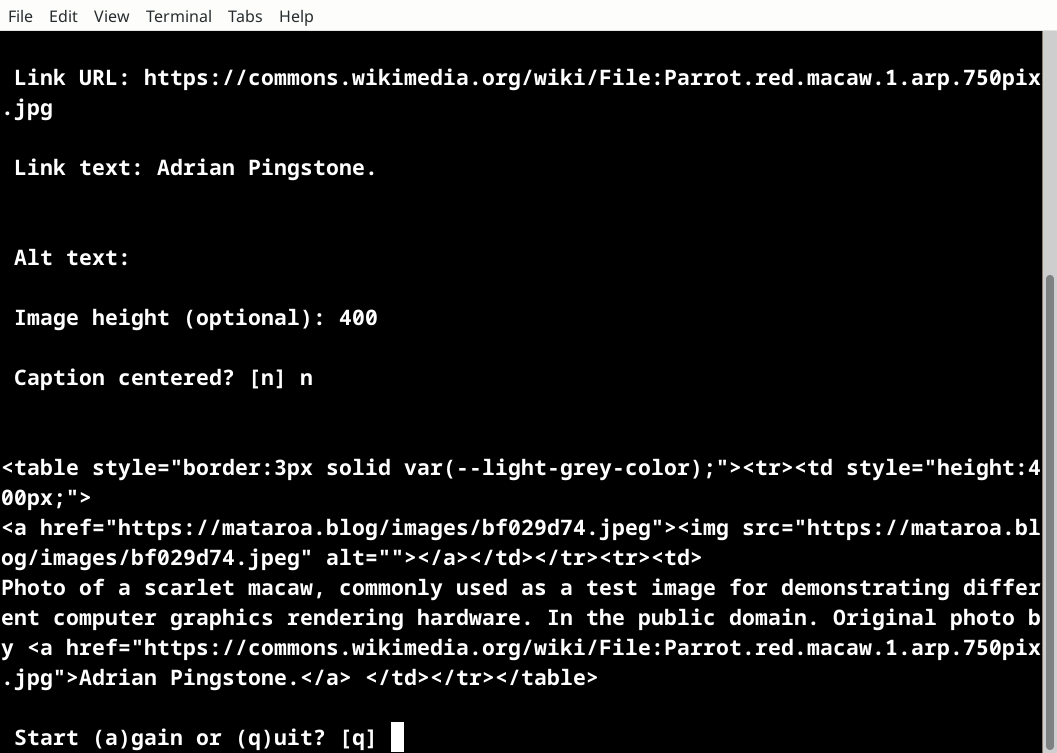
You can then quit or repeat the process from the beginning. This example produces the following:
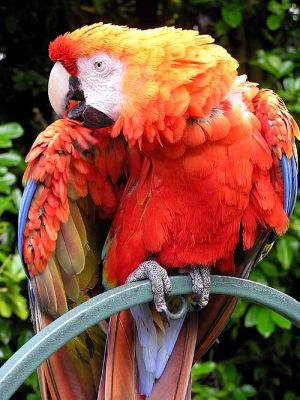 |
| Photo of a scarlet macaw, commonly used as a test image for demonstrating different computer graphics rendering hardware. In the public domain. Original photo by Adrian Pingstone. |

If you choose to center the caption, it looks like this:
<figure>
<a href="https://mataroa.blog/images/bf029d74.jpeg">
<img src="https://mataroa.blog/images/bf029d74.jpeg"
alt="Photo of a scarlet macaw"></a>
<figcaption style="font-size:1rem;">
Cute bird!
</figcaption>
</figure>
Patch mode
If you add your API key, that's when things get fun. You now have a menu of options to choose from: You can (1) Beautify an image, or (2) use Status Mode. We'll start with the image beautifier. Select 1, and you'll be prompted to enter the slug of the post you want to add an image to. The "slug" is the unique part of the URL for a blog post, like mattbee.mataroa.blog/p/matabash. You can just press enter if you want to continue with output mode as before, or you can enter ? and it'll automatically pick the slug for your most recent post.
Caveat
The only way I can figure to fetch the latest slug is by first downloading your entire blog archive┈like, including all of the text. This won't be an issue for most people, but this might take awhile if you have, uh, around 460-ish blog posts or more. I was hoping I could just download the first 100kb or so of the archive, but that only seems to be possible if the target has a content-length: header, which the Mataroa API doesn't use. Unsurprising, since it returns .json generated on the fly. But even with my 2MB+ blog archive, this only takes a few seconds; it just feels a little wasteful.
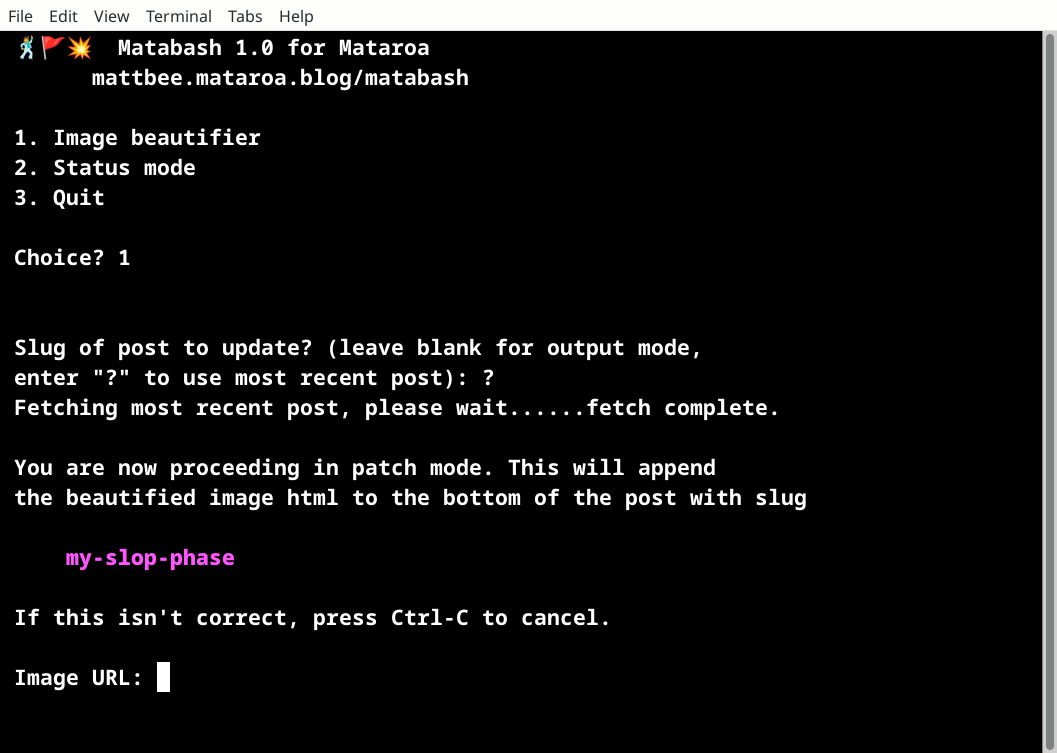
Once you have the slug you want to patch, the program proceeds as before, but instead of outputting the HTML, it'll automatically add it to the bottom of the specified post. ⚠️ Make sure, if you were editing your post in the browser, that you click save before using patch mode. There's no way for it to update the active editor window, so if you click save after using patch mode, it'll overwrite the HTML and you'll have to do it again.
Status Mode
Status mode allows you to use a page or post on Mataroa as a microblog. Pick option 2 from the menu, and it'll ask you if you'll be updating (1) a page, or (2) a post. Pick one, it'll ask you for the slug of the page or post you want to update. Once this is entered, Matabash stays in Status Mode until you press Ctrl+C to exit.
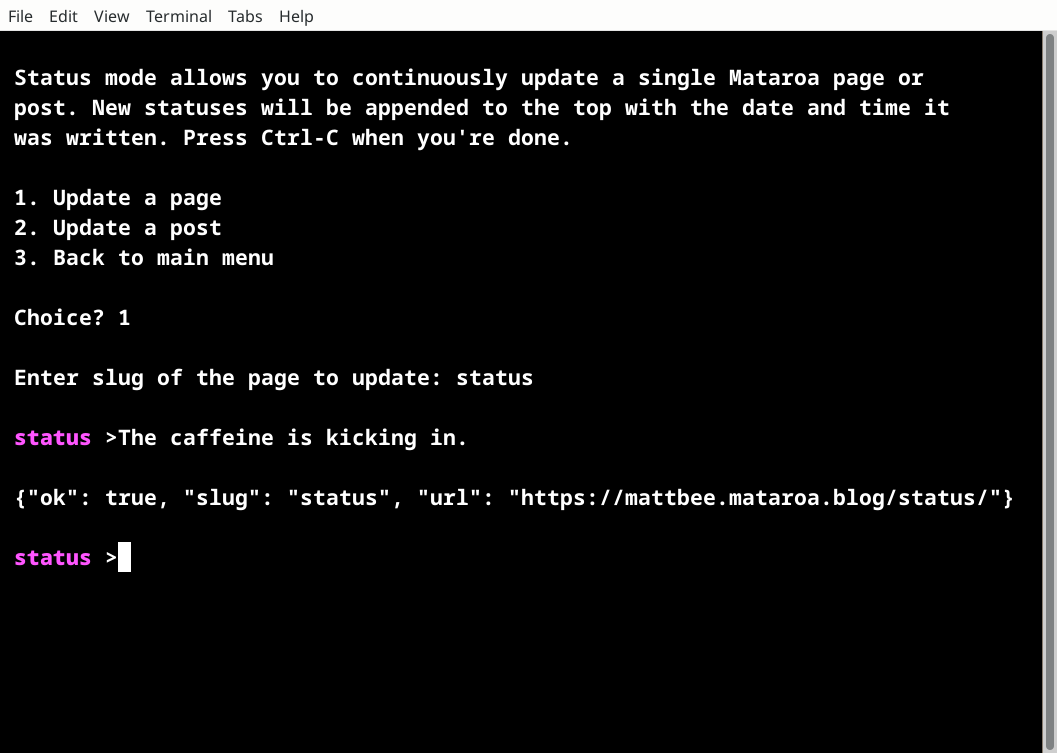
Every time you enter some text, it'll append it to the top of the chosen document with the current date and time. You can use this as an alternative to social media, or for liveblogging, or any short chronological log you can think of. There's no character limit, and you can use HTML or markdown.
Click here to see my status page!
It's still just a normal page and the status entries are just text/HTML/markdown, so I can edit it however I want. I find that if I feel the urge to post something very negative on the Fediverse, having an alternative where I can truly "yell into the void" without putting it on anyone's feed can help me express those feelings in a healthier way. I can always delete it later, and people will only see it if they actively opt-in by viewing the page.
Quick Status Mode
Finally, you can enable Quick Status Mode by editing the script and changing quick_status to 1. The default type of slug is page and the default slug is status, but you can change the defaults as needed.
Once QSM is enabled, you can post a status from the command line by invoking Matabash with some quoted text:
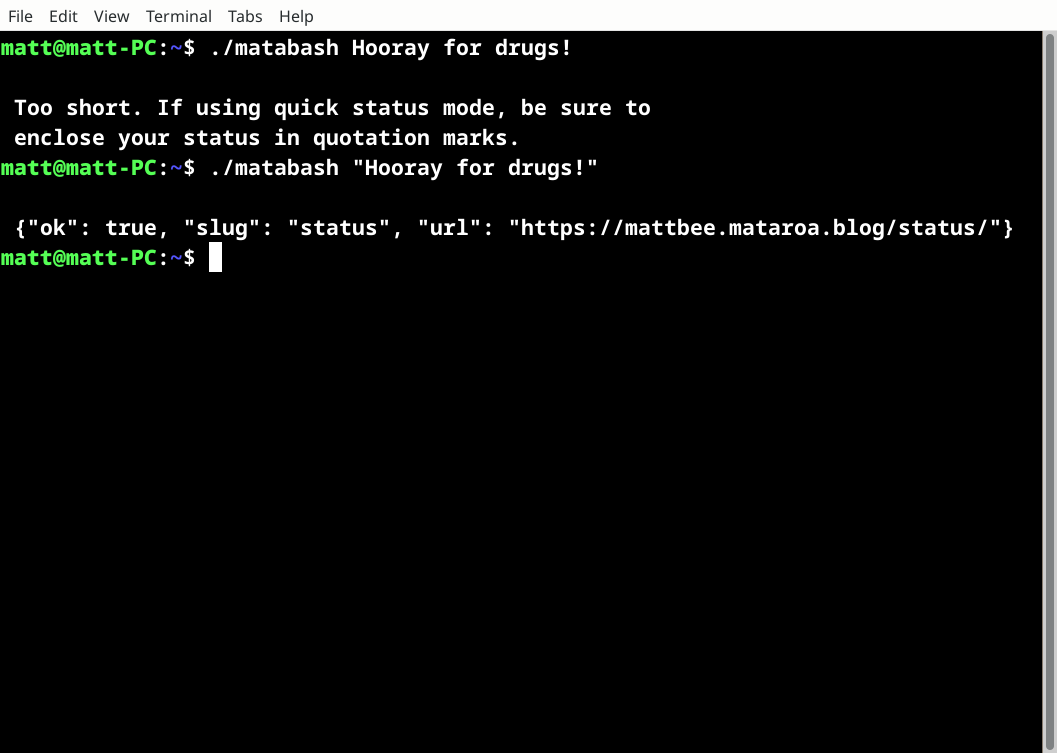
Unfortunately, you do need to remember to use double quotes when you do this, because otherwise Bash interprets each word as a separate variable and there's really no way around this. If the program thinks you're trying to post a single-word status, it'll reject it and remind you that you need to use quotes; so you can just press ⬆️ to access the previous command, add the quotes, and press enter.
If you do use QSM, you'll probably want to add Matabash to your PATH so you can run it from anywhere on your system. Once you do this, it should be simple to use it in other scripts for automatic status updates. For example, if I wanted to update my status with a "Now playing" message everytime I watch a video with whirltube (I really gotta get off github), I could use yt-dlp to get the title for the specified URL, make a string that's something like:
Now playing: [$title]($URL)
And pipe the string into Matabash.
Limitations
You need curl and jq1 installed to do anything with the API. I didn't add any error handling because I think every mainstream Linux distro has them pre-installed? I already had them on Debian, anyway. If it breaks, make sure they're not missing from yours.
The terminal is kind of a funky environment for inputting text: Pressing the arrow keys or Esc at any of the prompts can make it freak out, because I'd need to code special exception handlers for each keycode and I can't be assed. You have to use the backspace key to change what you've entered, and this can be a hassle if you're typing a long status. You might be better off just pressing Ctrl+C / ⬆️ / Enter and starting over; or, post the status as-is and make any necessary changes in the browser editor.
Line wrapping is also annoying: whatever you type will just soft-wrap at whatever letter is at the edge of the window, and trying to backspace after this happens will cause all sorts of weirdness. However, since the status page is just a document I can go in and edit after the fact and not an immutable append-only record, I don't consider any of these dealbreakers.
Also, the program assumes an 80-column terminal window and looks fucked up if you're running it in say, Termux on a phone. But it's still functional, and all I'm ever going to use it for on my phone is Status Mode anyway. Even if the process gets killed, re-opening Termux again takes me right back to the status prompt. I can type in and send a Status with less friction than posting to the Fediverse, so when I Just Gotta Post, I consider it an effective replacement.
What's Next
I'll probably add a few simple features that take advantage of the API, like downloading your post history and maybe stuff like displaying your most recent comments, but I don't intend to make it a full-fledged "Mataroa client", at least not anytime soon. Making the UI less hateful would probably require learning curses, and I'm not quite ready to go there... but when I am, this will be the project I use to tinker and get my feet wet.
If you use this program and have any questions or feedback, you can contact me at bluelander@tutanota.com or leave a comment below. I can't promise to address any feature requests in a timely manner if at all; but the program is also the source code, so you can change it however you'd like. You can share any changes you make with the CC-BY-SA-NC 4.0 license.
-
This name raised some eyebrows, but jq was first released in 2012 and the dogwhistle wasn't popularized until 2016. ↩
Thou has switched to mataroa to prevent thine self from fixing these things infinitely. Hast thou instead decided to fix these things trans-finitely?
@Lisa: Well you see, I wanted to make it so I couldn't be compelled to endlessly tweak CSS cuz it's such a hateful programming language. And now I'm using Bash, which is a different hateful programming language, so it's okay 🫠
For real though, my brain perceives "making a program" as a different thing than "writing CSS". The former can have a definite "done" state while the latter is just sort of infinitely amorphous. I can release new versions of a program, but each version is a "done" state I don't have to touch ever again unless I want to; CSS never has a state I can look at and say okay, it's "done". This might be a distinction without a difference, but brains are weird 🤷♀️
I don't think of markup languages like css as programming languages either, but as like the markup for comments, or a template for writer/word type documents that is explicit and doesn't guess which bits you want to be temporary and which you want to apply to everything. Perhaps I've a negative association with dealing with it as a side effect of fighting with common office software...
@Anonymous: That's how I use it, but people smarter than me have hacked together some really impressive work with just CSS and HTML. Check out Blackle's Puzzle Box if you haven't seen it. No javascript at all, it's totally bonkers that a markup language can be this powerful.